The short answerUse Workspace for daily communication and a CRM for shared lead ownership, pipeline stages and follow-up history. Test the sync on real sales work before rollout.
The short answer
Use Workspace for daily communication and a CRM for shared lead ownership, pipeline stages and follow-up history. Test the sync on real sales work before rollout.
Use Google Workspace for communication and collaboration, and a dedicated CRM when your sales team needs shared lead ownership, a managed pipeline and reliable reporting. The important decision is which system owns each customer record and how updates travel between them.
Key Takeaways
| Question | What to know |
|---|---|
| Does Google Workspace include CRM software? | No. Gmail, Calendar, Contacts, Drive and Meet support daily work, while a dedicated CRM manages shared customer records and sales activity. |
| When is a spreadsheet enough? | When lead volume is low and one person can reliably track ownership, status and next steps. |
| Which Workspace apps should connect to a CRM? | Start with Gmail and Calendar, then assess Contacts, Drive and Meet according to the team’s workflow. |
| What should a CRM track? | Contacts, companies, lead sources, owners, pipeline stages, next actions and a shared history of customer interactions. |
| How can we reduce manual sales admin? | Connect the systems the team already uses and automate handoffs only after mapping the records and steps involved. |
| Where can a team get CRM support? | Our CRM and sales automation service focuses on pipeline workflows, follow-ups and lead management. |
Can Google Workspace work as your CRM?
Google Workspace does not include a dedicated CRM. Gmail, Calendar, Contacts, Drive and Meet help a team communicate and collaborate, but they do not provide a shared lead pipeline and sales-management process as a built-in system.
A small team with a few active leads can manage basic contact details in Sheets and schedule follow-ups in Calendar. Give every lead a clear owner, record its current status and write down the next action, so opportunities do not disappear into personal inboxes or an unmaintained spreadsheet.
A dedicated CRM becomes important when multiple people need consistent ownership, pipeline stages, follow-up history and sales reporting. In that setup, make the CRM the central customer record and use Workspace as the connected productivity suite.
- Stay with a spreadsheet when one person can keep the records accurate and follow-ups visible.
- Move to a CRM when colleagues need to share responsibility, hand off customer conversations or report on a common pipeline.

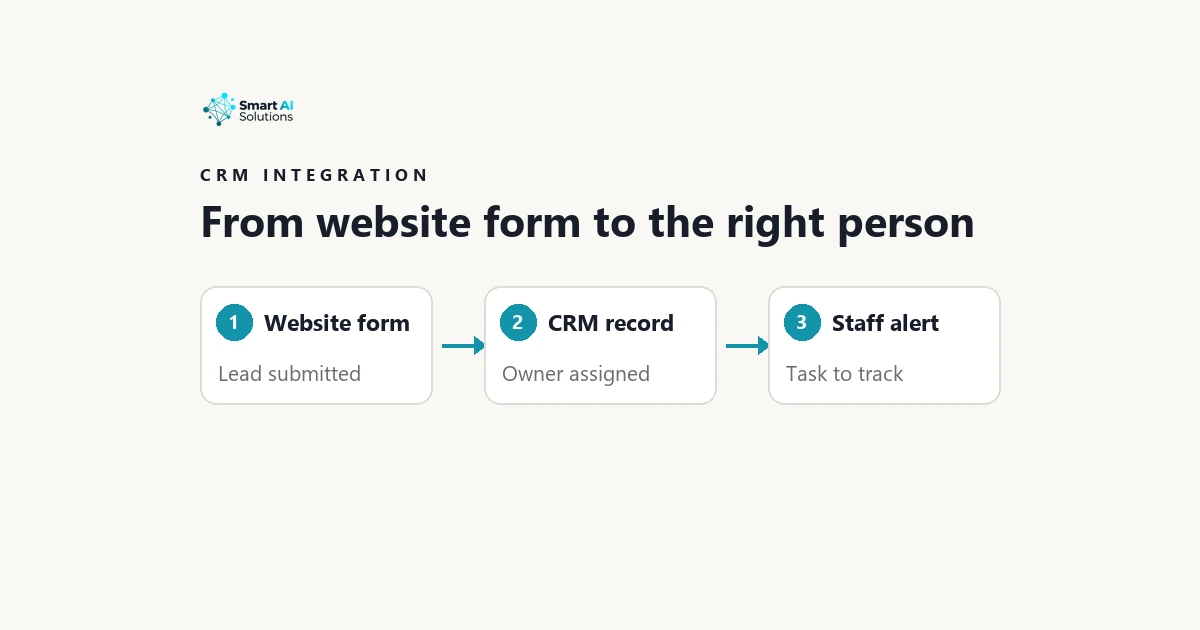
Illustrative image; not a customer case study.
What a CRM should manage for your sales team
Choose a CRM that stores customer information in structured fields, not scattered notes. At a minimum, track contact details, company relationships, lead source, owner, stage and next action so the team can filter records and act on them consistently.
Define pipeline stages with clear entry and exit criteria. For example, agree what qualifies a lead to move from initial enquiry to a sales opportunity, so each salesperson applies the same rules and reports describe the same process.
A shared interaction history should capture emails, calls and meetings against the right contact or deal. When a colleague takes over, they can see what has happened without relying on someone else’s personal inbox or memory.
Check that reports cover pipeline value, conversion between stages and follow-up activity. Those views help managers spot deals that have stopped moving and identify where the sales process needs attention.
For a practical assessment, include these questions in your CRM evaluation:
- Can we see who owns each lead and what needs to happen next?
- Can we relate a person to their company and the right sales opportunity?
- Can the team review customer conversations in one shared history?
- Can we report on pipeline progress and follow-up work using consistent definitions?
Why connect a CRM to Gmail, Calendar, Contacts, Drive and Meet?
A Gmail integration can associate sales emails with the right contact or deal, while Google Calendar sync can place meetings and follow-up tasks in the shared customer timeline. When configured around the team’s actual workflow, these connections reduce retyping and help colleagues pick up customer work with more context.
Google Contacts integration can reduce duplicate entry, but assign ownership of each contact field before enabling sync. If Workspace and the CRM can both edit the same phone number, company or email address, competing changes can create conflicting records.
Drive links can make proposals and shared documents easier to locate from a CRM record, and Meet details can help preserve meeting context. Keep access limited to people who need the material, and avoid copying sensitive files or notes into more places than necessary.
The benefit is shared customer context across the tools people already use; the trade-off is extra setup and governance. Avoid maintaining parallel customer notes across inboxes, spreadsheets and multiple apps, because those versions can drift apart.
When a business needs help mapping systems and reducing manual handoffs, our AI Integration Services service investigates existing systems and connects data flows without replacing systems that work.
For broader system connections, the services overview describes integrations that connect AI with existing tools including CRMs, ERPs, websites and back-office systems.
Google documents how third-party apps extend Workspace. Check the chosen app’s current permissions and supported operations; a Marketplace listing alone does not establish that it meets your sales workflow.
Compare CRM options by workflow, not just by integration labels
Test the actual sales journey before choosing a CRM: capture a lead, qualify it, schedule a meeting, send a proposal and close the opportunity. A claim that a product connects to Gmail does not show whether it supports the steps your team needs to complete.
Ask what records and fields sync, whether the connection works in one or both directions, how quickly changes appear and how the integration handles duplicates or conflicting edits. A two-way sync can save time, but only when the team knows which system should win if a field changes in both places.
Compare contact management, pipeline tools, follow-up automation and reporting against the team’s routine work. More features do not help if reps have to make extra clicks or maintain fields that nobody uses.
| Your current workflow | What to prioritise |
|---|---|
| One person manages a small number of leads | A clear spreadsheet process with reliable ownership, status and next-action tracking. |
| Several people share leads and customer conversations | Shared records, visible ownership, consistent stages and activity history. |
| The team needs repeatable follow-ups and performance reporting | Relevant automation, pipeline reporting and a CRM workflow reps can maintain. |
Keep a spreadsheet when lead volume is low and one person can maintain it reliably. Move to a CRM when shared ownership, repeatable follow-ups or pipeline reporting become difficult to manage consistently.
Plan the sync before connecting your systems
First, decide which system is authoritative for contacts, companies, deal stages and activity records. Map the corresponding fields before enabling synchronization, so the integration has clear rules instead of guessing how each app should handle a record.
Clean existing data before import by standardising key fields, merging duplicates and identifying records the team should leave behind. Poor source data carries into the new CRM and makes search, reporting and follow-up less dependable from the start.
Review account permissions and contact-sharing rules so the connection has only the access it needs and customer records reach the intended team. Then test a small set of records before rollout, including new and edited contacts, email logging, calendar events, duplicate handling and sync conflicts in both directions where supported.
- Map ownership: assign each field and record type to its authoritative system.
- Prepare the source: standardise, deduplicate and select the records to import.
- Set access: check who can connect, view, export and share customer information.
- Run a pilot: test everyday changes and confirm how the integration handles exceptions.
- Review the result: correct field mappings and sync rules before inviting the full team.
Protect customer data and keep records trustworthy
Apply least-privilege access to both CRM and Workspace accounts. Review who can view, export or share customer records as roles change, and remove access that a person no longer needs.
South African teams handling personal information must work within the Protection of Personal Information Act (POPIA) framework. Use information lawfully and securely for a defined business purpose, and set sensible retention and deletion practices so customer records do not remain indefinitely without a business need.
Agree how staff should correct inaccurate records and handle access, correction or deletion requests. When information changes or is removed from the CRM, make sure it does not remain out of date in disconnected files, contact lists or exports.
Document the integration’s data flows and ownership rules, then review the documentation when workflows, user access or connected applications change. Clear governance keeps customer data dependable as the team and its systems evolve.
Frequently Asked Questions
Which CRM is completely free?
No single CRM is completely free for every team without limits. Some providers offer free plans, but restrictions on users, contacts, automation or reporting can affect whether the plan covers your actual sales process.
Can existing Gmail messages be imported into a CRM?
Yes, many CRM setups can bring in selected Gmail history, but the available scope depends on the integration and the permissions granted. Decide which conversations matter for customer continuity before importing, so unrelated mailbox content does not become part of the sales record.
Can a CRM connect to more than one Google Workspace domain?
Often, yes, when the CRM and integration support multiple accounts or domains. Plan how to separate teams, permissions and duplicate contacts across domains before connecting them.
What should happen to CRM access when an employee leaves?
Disable the employee’s sign-in, revoke connected app access and transfer ownership of active leads, tasks and customer records to the right colleague. Also review shared calendars, files and any CRM automations tied to that person’s account.
Can a CRM send email from my Google Workspace address?
Some CRM integrations can send messages through a connected Workspace account, while others only record or display email activity. Choose the sending identity and approval rules deliberately so customers receive messages from the right person or team address.
Will changing CRMs delete files stored in Google Drive?
Changing CRM software does not by itself delete files held in Drive. However, links stored in the old CRM may need to be transferred or recreated so the team can find the right documents from the new customer record.
Conclusion
The strongest setup uses Workspace for everyday communication and a dedicated CRM when the team needs shared customer records, pipeline control, follow-up history and sales reporting.
Start with the team’s real sales workflow, define which system owns each field, clean existing records and test the sync before rolling it out. That approach keeps customer context connected while making access, ownership and reporting easier to manage.
Put the next step into practice
For the related implementation detail, read What AI Integration Service Can Connect Microsoft 365, Google Workspace and Our CRM?. Bring one workflow, the systems it touches and a few representative examples to a discovery conversation.